> For the complete documentation index, see [llms.txt](https://help.wayment.net/llms.txt). Markdown versions of documentation pages are available by appending `.md` to page URLs; this page is available as [Markdown](https://help.wayment.net/instrukcii-po-oplate/kak-oplatit-spotify.md).
# Как оплатить Spotify
Как оплатить Spotify Premium из России картой Wayment: оформление подписки, выбор региона аккаунта и продление.
{% hint style="danger" %}
Перед началом включите VPN с локацией в США или любой европейской стране.
{% endhint %}
В этой инструкции показано, как выбрать подписку Spotify Premium и оплатить её с помощью виртуальной карты Wayment.
{% stepper %}
{% step %}
## Проверьте подключение к VPN
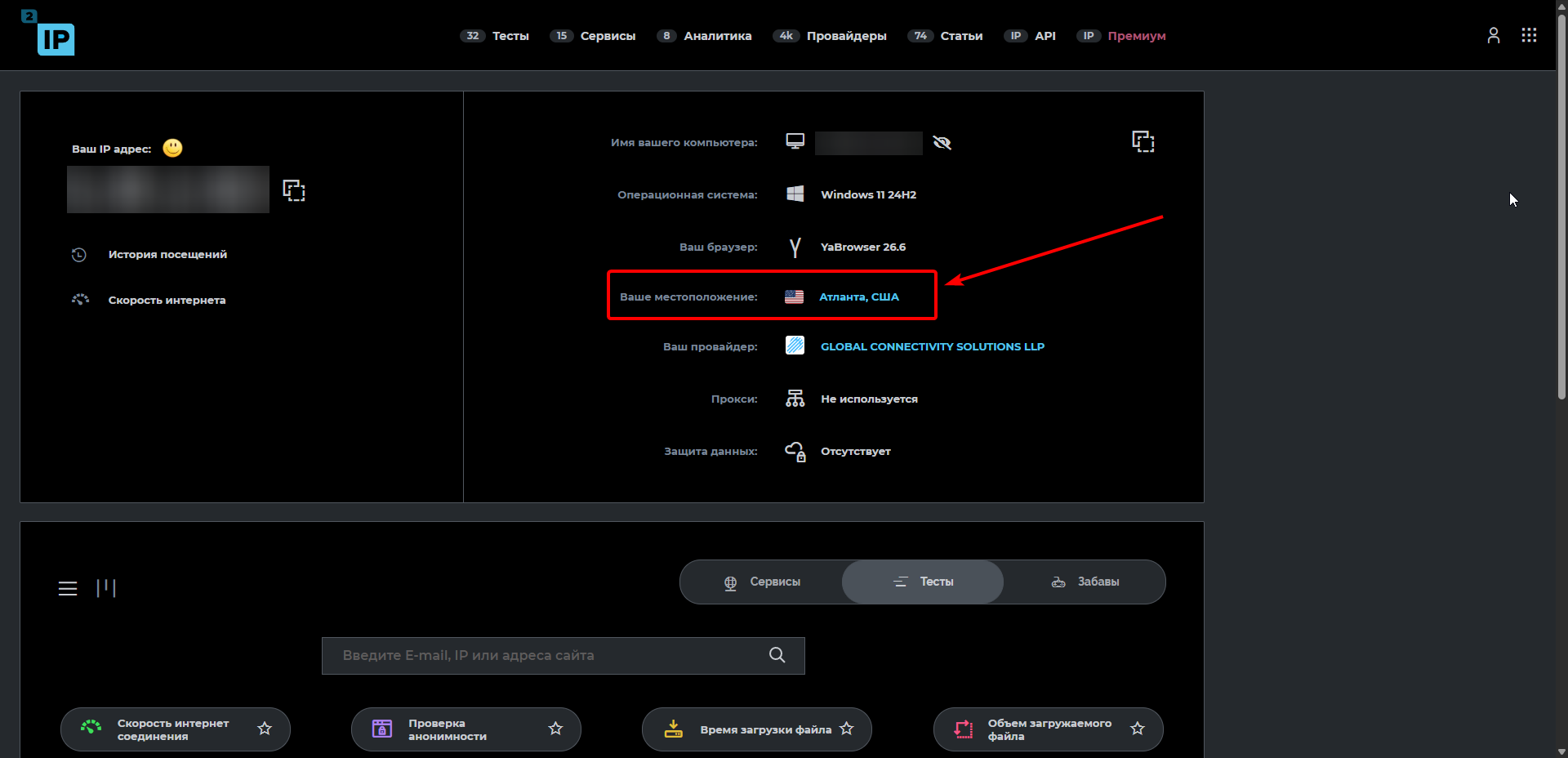
Откройте [2ip.ru](https://2ip.ru/) и убедитесь, что отображаемая страна соответствует выбранной локации VPN.
{% endstep %}
{% step %}
## Перейдите к Spotify Premium
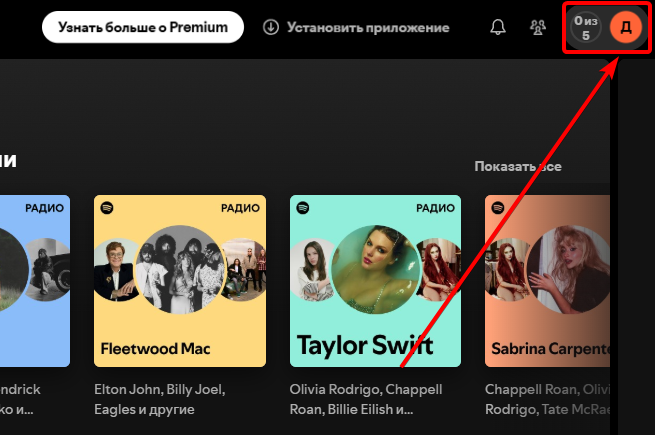
Откройте Spotify и нажмите на аватар профиля в правом верхнем углу.
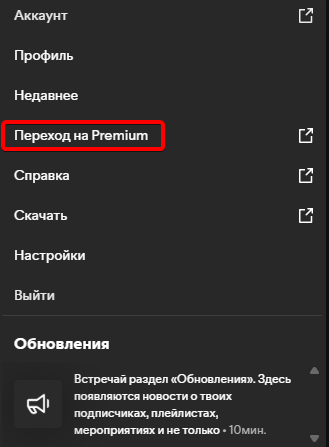
В открывшемся меню выберите **«Переход на Premium»**.
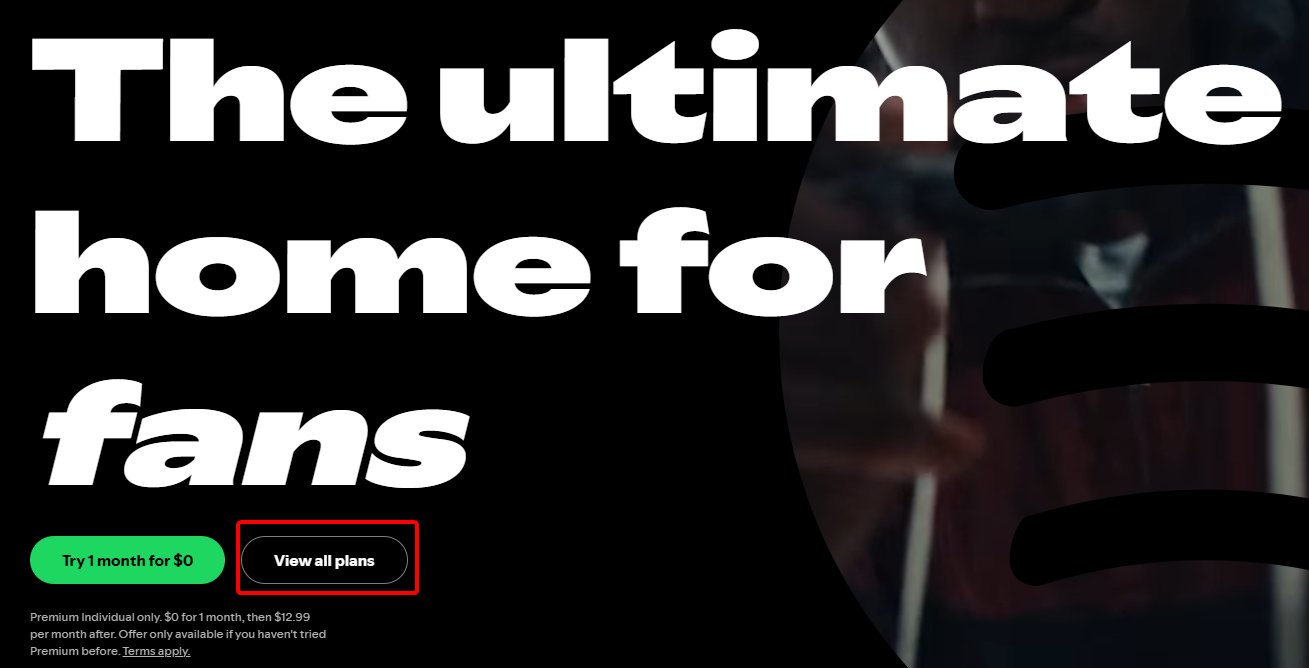
На странице Premium нажмите **View all plans**.
{% hint style="warning" %}
В примере показано оформление бесплатного пробного периода. При обычной оплате порядок действий остаётся таким же.
{% endhint %}
{% endstep %}
{% step %}
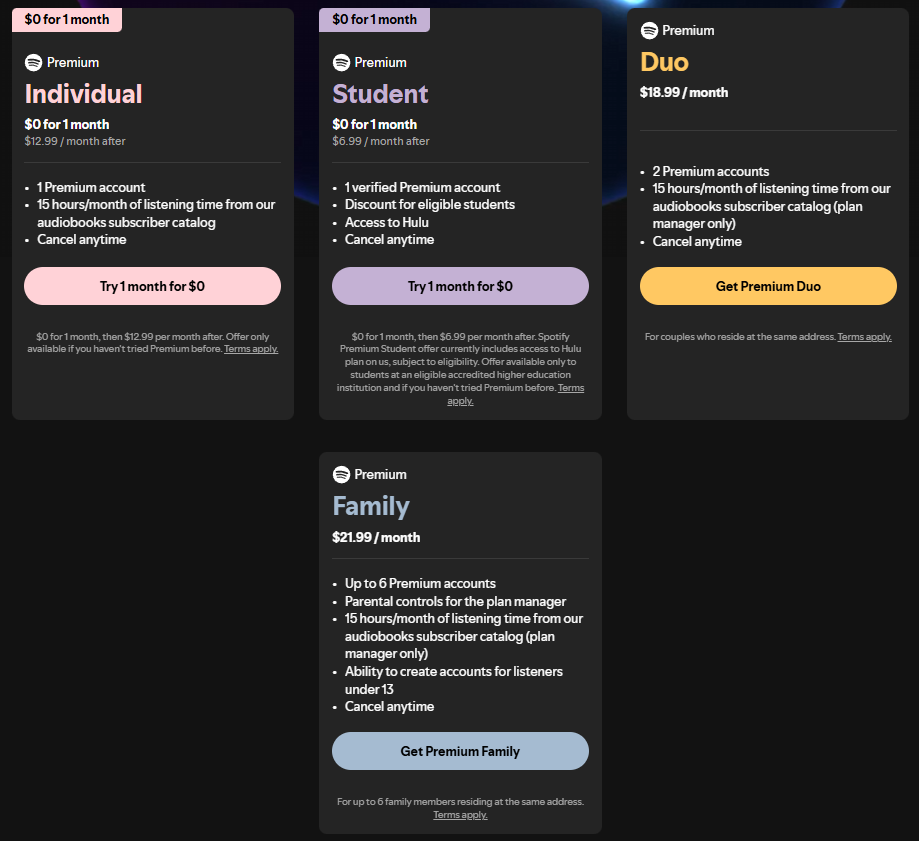
## Выберите подписку
Выберите подходящий тариф Spotify Premium и перейдите к оформлению.
{% endstep %}
{% step %}
## Измените страну оплаты
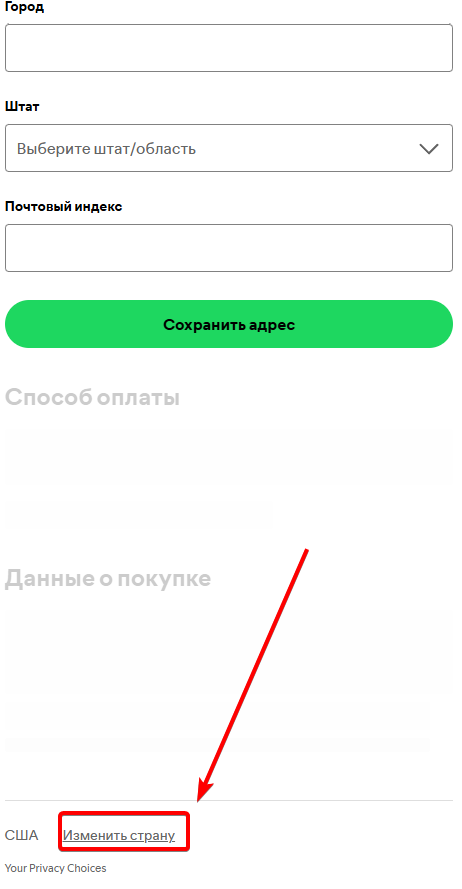
На странице оформления прокрутите экран в самый низ. Рядом с текущей страной нажмите **«Изменить страну»**.
Страна в Spotify должна соответствовать стране биллингового адреса карты Wayment.
{% endstep %}
{% step %}
## Узнайте биллинговый адрес карты
Откройте [@WaymentBot](https://t.me/WaymentBot) и нажмите на приобретённую карту.
Нажмите **«Биллинговый адрес» —** скопируйте страну, город, адрес и почтовый индекс.
Вернитесь в Spotify, выберите указанную в Wayment страну и заполните адресные поля этими данными.
{% endstep %}
{% step %}
## Добавьте карту
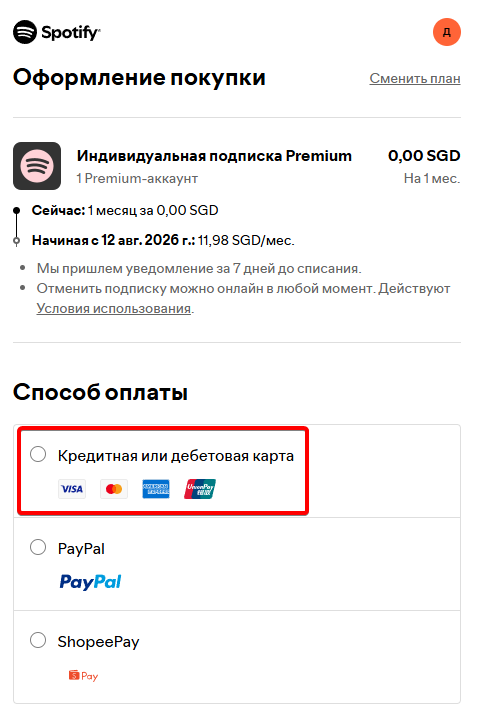
В разделе способов оплаты выберите **«Кредитная или дебетовая карта»**.
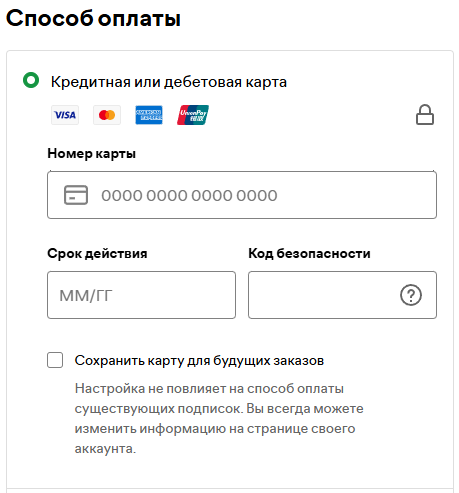
Откройте реквизиты карты в Wayment и внесите в форму Spotify:
* номер карты;
* срок действия;
* код безопасности.
{% hint style="warning" %}
Не передавайте номер карты, CVV-код и коды подтверждения другим людям.
{% endhint %}
{% endstep %}
{% step %}
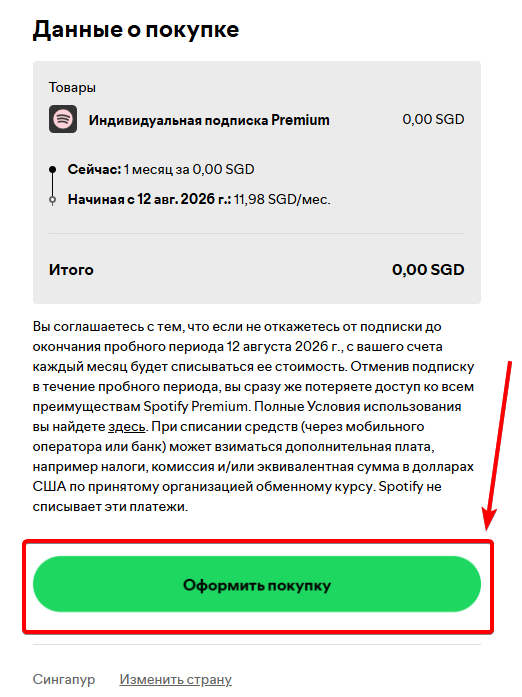
## Подтвердите покупку
Проверьте выбранный тариф, сумму и условия подписки. Затем нажмите **«Оформить покупку»**.
{% endstep %}
{% step %}
## Пройдите проверку 3-D Secure
На странице подтверждения операции нажмите **Next**.
Код подтверждения придёт в чат с [@WaymentBot](https://t.me/WaymentBot).
Введите полученный код и нажмите **Submit**.
{% endstep %}
{% step %}
## Проверьте результат
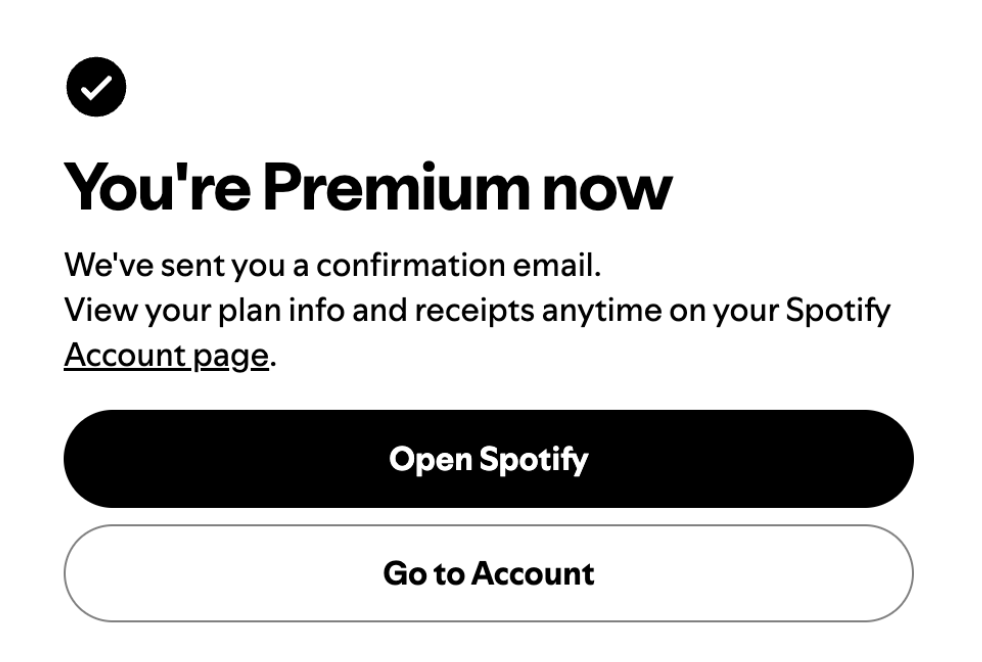
После успешной оплаты появится сообщение о подключении Spotify Premium.
{% hint style="success" %}
Готово — подписка Spotify Premium активирована.
{% endhint %}
{% endstep %}
{% endstepper %}
Интерфейс Spotify может обновляться, поэтому названия и расположение отдельных элементов иногда отличаются от скриншотов.
---
# Agent Instructions
This documentation is published with GitBook. GitBook is the documentation platform designed so that both humans and AI agents can read, navigate, and reason over technical content effectively. Learn more at gitbook.com.
## Querying This Documentation
If you need additional information that is not directly available in this page, you can query the documentation by asking a question.
Perform an HTTP GET request on the following URL with the `ask` and `goal` query parameters:
```
GET https://help.wayment.net/instrukcii-po-oplate/kak-oplatit-spotify.md?ask=&goal=
```
`ask` is the immediate question: it should be specific, self-contained, and written in natural language.
`goal` is what the user is ultimately trying to achieve, the reason they need the answer. Sharing it helps GitBook give you a better, more relevant answer. A goal is most helpful when it describes the outcome the user wants rather than restating the question. For example, with `ask=how do I create an API token`, a goal like `automate deployments from our CI pipeline` lets GitBook tailor the answer to that use case.
The response will contain a direct answer to the question and relevant excerpts and sources from the documentation.
Use this mechanism when the answer is not explicitly present in the current page, you need clarification or additional context, or you want to retrieve related documentation sections.