> For the complete documentation index, see [llms.txt](https://help.wayment.net/llms.txt). Markdown versions of documentation pages are available by appending `.md` to page URLs; this page is available as [Markdown](https://help.wayment.net/instrukcii-po-oplate/kak-privyazat-kartu-k-app-store.md).
# Как привязать карту к App Store
Как привязать карту Wayment к App Store из России: смена региона Apple и добавление карты как способа оплаты.
В этой инструкции показано, как изменить регион App Store, добавить виртуальную карту Wayment и сохранить её в качестве способа оплаты.
{% hint style="info" %}
Перед началом убедитесь, что карта активна и на её балансе достаточно средств для будущих покупок.
{% endhint %}
{% stepper %}
{% step %}
## Откройте настройки аккаунта
Откройте App Store и нажмите на аватар профиля в правом верхнем углу.

Нажмите на блок **«Информация об аккаунте, платежи и настройки»**.

В настройках учётной записи выберите **«Страна/регион»**.

{% endstep %}
{% step %}
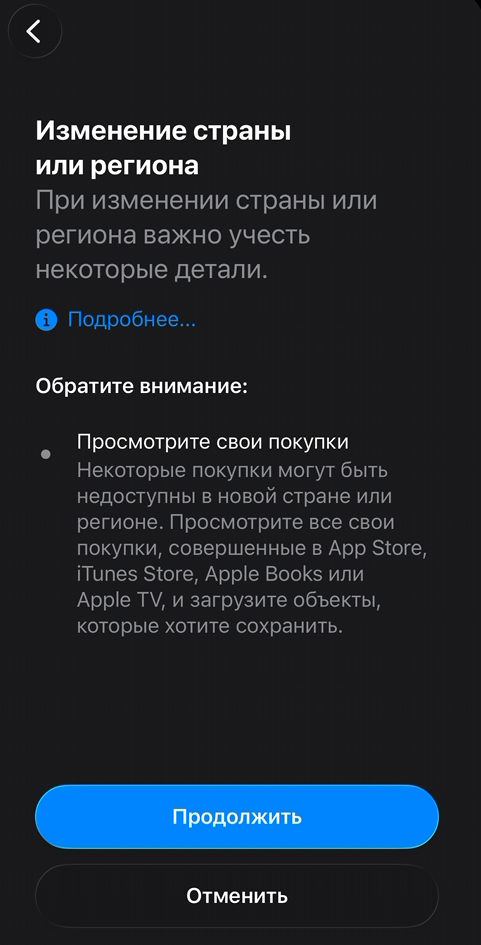
## Измените страну или регион
Выберите страну, соответствующую типу вашей карты:
* для карты **«Для подписок»** — **Сингапур**;
* для карты **«Для путешествий»** или **«Премиальная»** — **Гонконг**.
В примере используется карта для подписок, поэтому выбираем **Сингапур**.

Нажмите **«Продолжить»**. Ознакомьтесь с условиями использования и нажмите **«Принять»**.
{% endstep %}
{% step %}
## Добавьте способ оплаты
В разделе способов оплаты выберите **Credit / Debit Card**.

Оставьте страницу добавления карты открытой и перейдите в [@WaymentBot](https://t.me/WaymentBot).
На главном экране нажмите на приобретённую карту.
{% endstep %}
{% step %}
## Введите реквизиты карты
Откройте реквизиты карты и скопируйте:
* номер карты;
* срок действия;
* CVV-код.
Введите эти данные в соответствующие поля App Store.
{% hint style="warning" %}
Не передавайте номер карты и CVV-код другим людям. Перед сохранением внимательно проверьте введённые данные.
{% endhint %}
{% endstep %}
{% step %}
## Заполните адрес для выставления счёта
Нажмите **«Биллинговый адрес»**. \
Скопируйте адресные данные и перенесите их в App Store.
Для карты **«Для подписок»** используйте биллинговый адрес, указанный в Wayment.
Для карты **«Для путешествий»** или **«Премиальная»** используйте следующие данные:
* **Страна:** Hong Kong
* **Штат:** —
* **Город:** Central
* **Адрес:** Flat 802, 8/F, Wing On House, 71 Des Voeux Road Central
* **Индекс:** —
В поле **Phone** укажите `1234567890`.
В полях **First Name** и **Last Name** рекомендуется указать свои имя и фамилию латиницей.

{% endstep %}
{% step %}
## Сохраните изменения
Проверьте введённые реквизиты и нажмите **«Готово»** в правом верхнем углу.

{% hint style="success" %}
Готово — карта привязана к App Store и её можно использовать для покупок.
{% endhint %}
{% endstep %}
{% endstepper %}
Интерфейс App Store может обновляться, поэтому названия и расположение отдельных элементов иногда отличаются от скриншотов.
---
# Agent Instructions
This documentation is published with GitBook. GitBook is the documentation platform designed so that both humans and AI agents can read, navigate, and reason over technical content effectively. Learn more at gitbook.com.
## Querying This Documentation
If you need additional information that is not directly available in this page, you can query the documentation by asking a question.
Perform an HTTP GET request on the following URL with the `ask` and `goal` query parameters:
```
GET https://help.wayment.net/instrukcii-po-oplate/kak-privyazat-kartu-k-app-store.md?ask=&goal=
```
`ask` is the immediate question: it should be specific, self-contained, and written in natural language.
`goal` is what the user is ultimately trying to achieve, the reason they need the answer. Sharing it helps GitBook give you a better, more relevant answer. A goal is most helpful when it describes the outcome the user wants rather than restating the question. For example, with `ask=how do I create an API token`, a goal like `automate deployments from our CI pipeline` lets GitBook tailor the answer to that use case.
The response will contain a direct answer to the question and relevant excerpts and sources from the documentation.
Use this mechanism when the answer is not explicitly present in the current page, you need clarification or additional context, or you want to retrieve related documentation sections.